What GroundsWatcher does on a normal day.
It finds people and vehicles on the cameras you already own. It never reads faces, and plate reading stays off unless you turn it on. Cameras and doors come together in one place to see what needs attention, find the clip and keep a record.
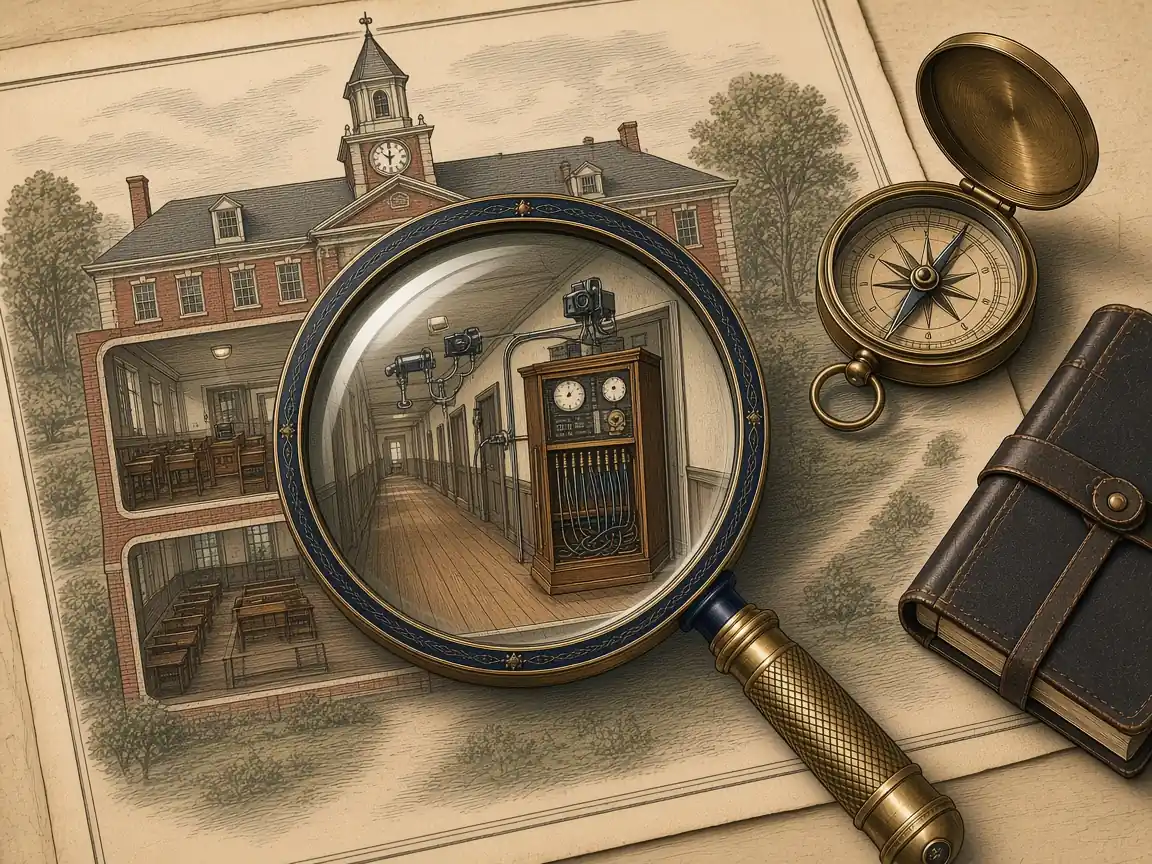
What your team opens every morning.
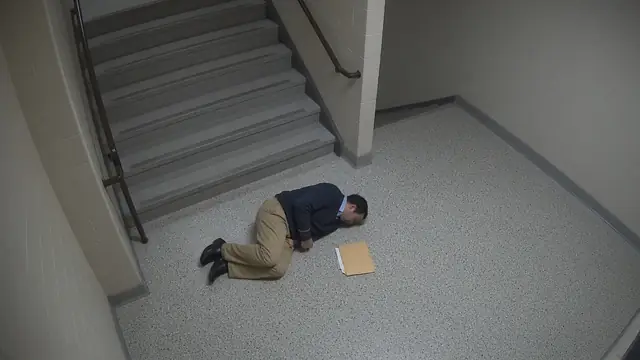
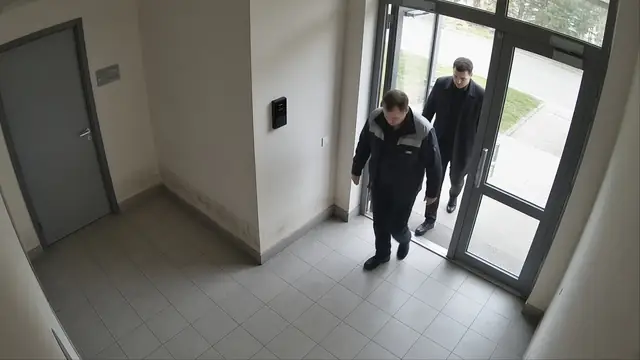
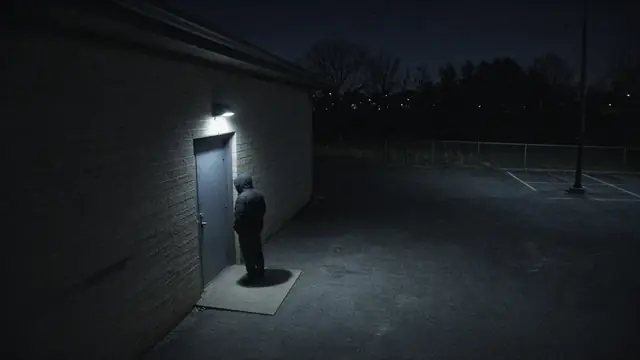
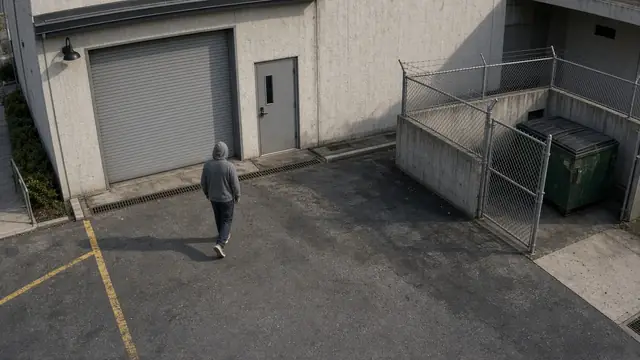
Alerts, search in plain words, cases and rules that follow the school calendar. Shown with a fictional demo school.

Alerts
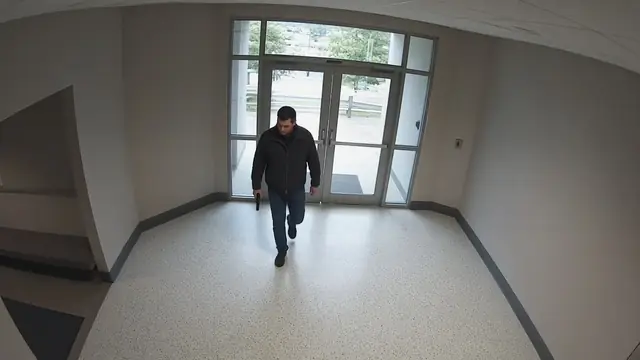
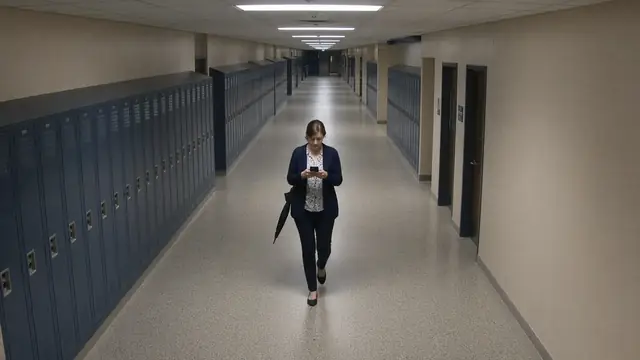
Find
Cases
Rules follow the school calendar
Six parts your team touches.
Each one is included with every install.
- Part I
Alerts that mean something
GroundsWatcher watches your camera feeds and texts, emails or calls the staff you choose. Quiet hours keep the daytime hallway from lighting up your phone, and critical alerts still come through. Every alert gets the second look first, and a person always has the last say.
- Alerts go only to the people you pick
- Quiet during the school day where you want it
- Every alert has a picture, a phone page and a clip
- Part II
Cases
When something happens, open a case. Attach the clip, the snapshot and the door event, add notes, and copy a plain summary for a principal or an administrator. Exports carry a fingerprint on every file.
- Camera and door events in one folder
- Notes with times
- Nothing is shared unless you send it
- Part III
Find
Search alerts, cases and door events by time, camera or keyword, including what's in the pictures. Thumbnails help you spot the moment without scrubbing through hours of video. Find never searches by face.
- Minutes to a clip
- One search across cameras and doors
- Part IV
Review and rewind
Every alert gets an event clip. Your recorder keeps recording wherever it lives today, cloud or on-site. If you want GroundsWatcher to record too, it keeps continuous recording on its own box and we size storage for 30, 60 or 90 days.
- Event clips saved for every alert
- Works with the recorder you have
- A searchable timeline when you want one
- Part V
Door events with video
If you have electronic access control, door events sit next to the cameras: held open, forced, or opened after hours. One click starts a case with the right camera attached. GroundsWatcher listens to door events and never unlocks a door.
- Held open, forced and after-hours events
- The camera at that door on the same card
- Part VI
A network that stays separate
Every install separates the zones: students and guests, staff, cameras and doors, and management. The phones in a hallway can't reach the camera network. Zone checks, DNS filtering and intrusion alerts are set up at install. GroundsWatcher doesn't push rules to your firewall by itself.
- Four zones in the standard design
- Cameras not reachable from the internet
- Checked and documented at setup
Key to the closet.
The reference design, part by part. Every site is adjusted to what you already run.
- Item I
The GroundsWatcher box
Runs GroundsWatcher as a supervised service: the dashboard, alerts, cases, search, detection and the second look. It's sized to your cameras at setup.
- Item II
Door events
Works alongside your door system. It listens to door events and never unlocks a door. Exterior and life-safety doors stay on their listed hardware.
- Item III
Firewall and zones
Four network zones: students and guests, staff, cameras and doors, and management. Zone checks are part of the install.
- Item IV
DNS filtering
GroundsWatcher's own resolver can block malicious and inappropriate destinations across zones, without a cloud DNS service.
- Item V
Keyed remote access
Keyed remote access on a few named devices. Removing a device's key removes its access.
- Item VI
Intrusion alerts
Attack patterns in network traffic can open a case and go through your alert rules.
- Item VII
System health
A health page shows disk, recording, DNS, intrusion, zone and outage signals so facilities and IT see the same picture.
- Item VIII
Encrypted backups
Backups are encrypted by default, with a second copy to a folder or web address you choose, kept away from the closet.
- Item IX
Lockdown and fire panel
Lockdown runs through your own access system, with two people confirming and every door read back. Lockdown and fire stay separate signals, exits stay open from the inside, and a fire alarm never unlocks a door.
Raising the bar on the weak points.
- Remote keys on a few named devices, never the whole IT team
- Two-factor sign-in, and HTTPS on the dashboard
- Default-deny between staff devices and camera storage
- Disk encryption on the box, checked at install
- A locked closet, unused switch ports shut, guest Wi-Fi never on the camera zone
- Encrypted backups kept away from the closet
What stays risky.
Insider risk and a person with a key never go to zero. The aim is to make those paths clearly harder than a flat network with a shared password. We don't claim more than that.
When the district is ready, 802.1X on staff ports and stricter device policies can be added.
See it on your own cameras.
We bring the box, set it up on the cameras and doors you have, and walk your staff through it.
The careful eye on every campus.